PaintingModeControllerComponent
PaintingModeControllerComponent is the player-side controller for runtime painting.
It does not make a mesh paintable by itself. Paintable meshes still need a RuntimeMeshPaintTargetComponent. The controller is responsible for entering paint mode, reading player input, showing the color picker, drawing the brush preview, resolving the target under the cursor, and submitting paint commands.
What It Does
The controller handles the player-side part of the painting workflow:
- Enters and exits painting mode.
- Adds the paint input mapping contexts.
- Traces from the mouse position into the world.
- Finds the correct
RuntimeMeshPaintTargetComponent. - Applies the current brush settings.
- Provides Undo and Redo operations for completed paint actions.
- Shows the runtime color picker widget.
- Displays the brush cursor and GPU brush area preview.
- Controls paint-mode orbit, pan, zoom, and movement behavior.
- Sends multiplayer paint commands when the target has replication enabled.
Required Setup
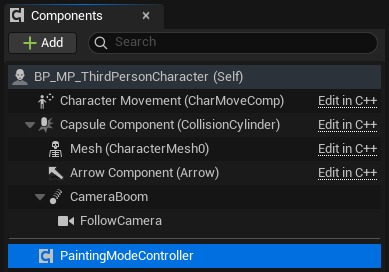
Add PaintingModeControllerComponent to the locally controlled player actor that should paint.
For a normal third-person character, add it to the character blueprint. For a drone or custom pawn, add it to the pawn that owns the camera input. A PlayerController owner is also supported for simple setups.
Choose a Control Mode that matches the owning actor's camera setup. EnterPaintingMode validates required components and returns false, with a screen and log warning, when a required reference is missing.
Control Mode and Input
The Controls and Input sections define how the component receives paint input.
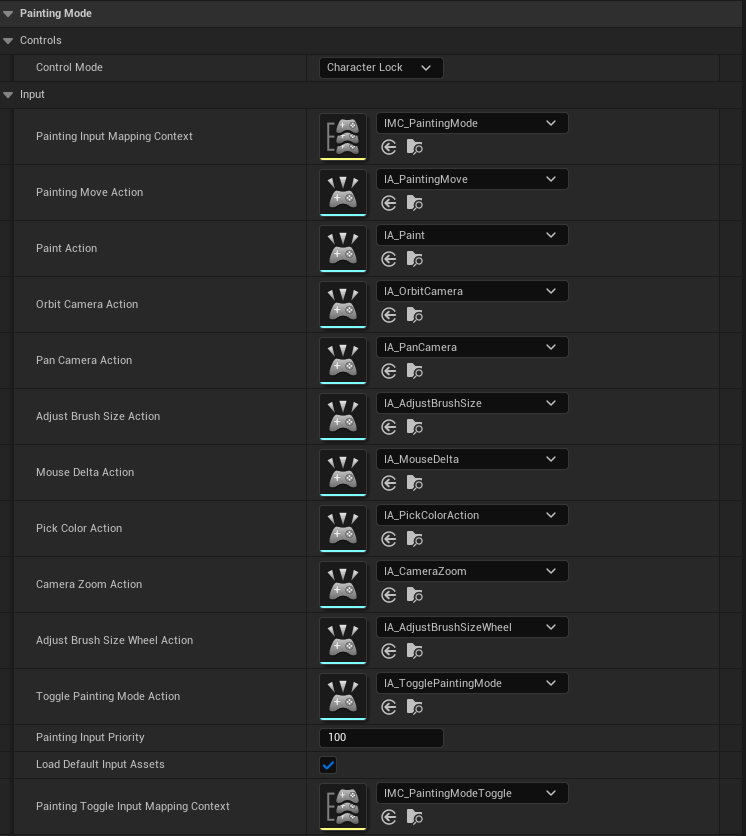
| Setting | Purpose |
|---|---|
Control Mode | Selects how much player/camera behavior the component controls. |
Painting Input Mapping Context | Mapping context added while paint mode is active. |
Painting Toggle Input Mapping Context | Mapping context used for toggling paint mode. |
Painting Input Priority | Enhanced Input priority used when mapping contexts are added. |
Load Default Input Assets | Loads the plugin default input actions and mapping contexts when fields are empty. |
Control modes:
| Mode | What the plugin controls | Required setup |
|---|---|---|
Third Person Controller | Paint movement, orbit, pan, and spring-arm zoom while Painting Mode is open. Normal look input is restored when it closes. | An ACharacter, CharacterMovementComponent, and SpringArmComponent. |
First Person Controller | Middle Mouse rotates the player-controller view for painting. Your existing character movement remains active. | A CameraComponent. |
Drone Controller | Middle Mouse rotates the owner actor and Shift + Middle Mouse pans the camera. The plugin does not implement drone movement or a default wheel zoom binding. | A CameraComponent. Keep movement in your Pawn or Blueprint; map CameraZoomAction yourself when this mode needs zoom. |
Simple | Painting, direct color sampling, and brush-size input only. It does not take over camera, look, movement, orbit, pan, or zoom. | No camera, Spring Arm, or character movement component. |
None | Does not bind the built-in painting input or take over camera/movement. Painting Mode and paint functions can be driven manually from Blueprint or C++. | No required component. |
For First Person Controller and Drone Controller, CameraName is optional. Leave it empty to use the active camera, or enter a component name when the owner has multiple cameras. Third Person Controller always uses a Spring Arm; it does not use CameraName.
Default input assets:
| Asset | Used For |
|---|---|
IA_Paint | Starts, continues, and releases a paint stroke. |
IA_PickColorAction | Samples the color under the cursor. The plugin's generated input context maps this to Space. |
IA_OrbitCamera | Starts camera orbit while paint mode is active. |
IA_PanCamera | Starts camera pan. The component only accepts pan while Shift is held. |
IA_CameraZoom | Zooms the Spring Arm in Third Person Controller mode. |
IA_AdjustBrushSize | Adjusts brush size while the action is held and mouse delta is received. |
IA_AdjustBrushSizeWheel | Adjusts brush size from mouse wheel while Control is held. |
IA_MouseDelta | Feeds orbit, pan, and drag-based brush size changes. |
IA_PaintingMove | Moves the character in Third Person Controller mode. |
IA_TogglePaintingMode | Toggles paint mode through the toggle mapping context. |
IA_PaintShortcutCtrl | Modifier action used by the default Undo and Redo chord mappings. |
IA_UndoPaint | Undoes the most recent completed paint action. The default mapping is Ctrl + Z. |
IA_RedoPaint | Redoes the most recently undone paint action. The default mapping is Ctrl + Y. |
The exact keys are controlled by the input mapping assets. Edit IMC_PaintingMode or IMC_PaintingModeToggle if your project needs different bindings.
Paint Target and Trace
The Paint Target section controls which paint target components this player is allowed to use. The Paint section controls trace and brush material setup.
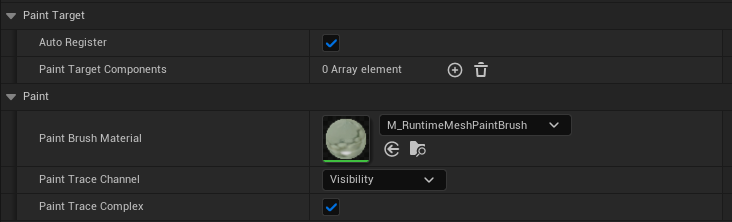
| Setting | Purpose |
|---|---|
Auto Register | If enabled, the controller can automatically use a single RuntimeMeshPaintTargetComponent found on its owner actor. |
Paint Target Components | Optional allow list. When this array has entries, the controller can only paint those target components. |
Paint Brush Material | Brush material used when submitting paint to the target. The default plugin brush material is usually enough. |
Paint Trace Channel | Collision channel used for finding the surface under the cursor. The target mesh must block this channel. |
Paint Trace Complex | Enables complex trace data for more accurate hit information. |
Leave Paint Target Components empty if the player should be able to paint any valid target hit under the cursor. Fill it only when the player must be restricted to specific paint targets.
Brush Settings
Brush settings are stored on the controller and sent to the target when paint is applied.
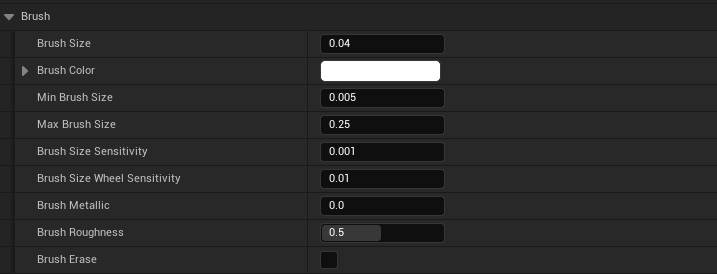
| Setting | Purpose |
|---|---|
Brush Size | Current brush size used for paint and preview. |
Brush Color | Current paint color. |
Min Brush Size | Lower clamp used by SetBrushSize and brush-size input. |
Max Brush Size | Upper clamp used by SetBrushSize and brush-size input. |
Brush Size Sensitivity | Drag-based brush size change speed. |
Brush Size Wheel Sensitivity | Mouse wheel brush size change speed. |
Brush Metallic | Metallic value written when material settings painting is enabled on the target. |
Brush Roughness | Roughness value written when material settings painting is enabled on the target. |
Brush Erase | Enables erase mode for the current brush settings. |
Use SetBrushSize when changing brush size from UI. It clamps the value and fires OnBrushSizeChanged, so sliders and labels can stay synchronized.
Color Picker, 3D Sampling, and Cursor
The widget section controls the automatic runtime color picker. The cursor section controls the custom brush cursor shown outside the UI.
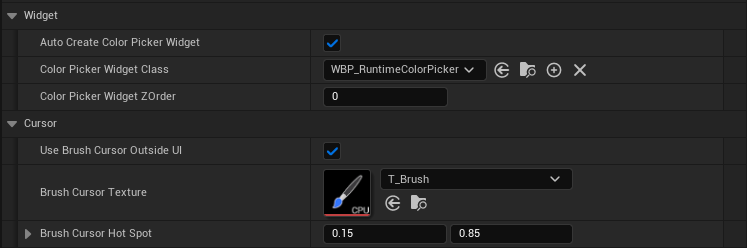
| Setting | Purpose |
|---|---|
Auto Create Color Picker Widget | Creates the color picker automatically when paint mode starts. |
Color Picker Widget Class | Widget class used for the runtime color picker. The default is WBP_RuntimeColorPicker. |
Color Picker Widget ZOrder | Viewport Z order for the color picker. |
Use Brush Cursor Outside UI | Replaces the mouse cursor with the brush cursor when the cursor is not over the painting UI. |
Brush Cursor Texture | Texture used for the custom cursor. |
Brush Cursor Hot Spot | Normalized cursor hotspot. |
When color picking is active or the cursor is over the color picker panel, painting and brush preview are blocked so UI interaction does not accidentally paint the mesh.
3D Color Sampling
Color Picker Sample Mode controls the color used by the 3D eyedropper, including direct sampling with Space while Painting Mode is active.

| Mode | Result |
|---|---|
Mesh Unlit Color | Samples the mesh's unlit/base color without scene lighting. This is the default and is best when the sampled color should match the material rather than a lit viewport pixel. |
Viewport Lit Color | Samples the visible color at the cursor from the viewport. Lighting and other visible viewport effects can affect the result. |
Mesh Unlit Color Then Viewport | Tries the unlit mesh color first. If it cannot resolve one, it falls back to the visible viewport color. |
Pressing Space immediately samples the color under the cursor using the selected mode. It does not require the eyedropper button to stay active.
Custom Brush Cursor Texture
You can replace Brush Cursor Texture with your own Texture2D, but the texture must be readable by the runtime cursor builder.
Requirements for a custom cursor texture:
- Use a normal
Texture2Dasset. - Enable
CPU Copyon the texture asset so the cursor pixels can be read in packaged builds. - Keep the background transparent.
- Keep the texture small and readable as a cursor, usually
64x64or128x128. - Set
Brush Cursor Hot Spotto the point that should touch the painted surface.
The cursor color is generated from the current Brush Color. The system does not use a separate mask texture. Instead, it treats visible, saturated, colored pixels in the cursor texture as the replaceable accent area.
For best results:
- Make only the brush tip or paint area strongly colored.
- Keep the handle and outline grayscale, white, black, or low saturation if they should not change color.
- Do not make the tintable tip too dark, because the source brightness is preserved when the brush color is applied.
- Use alpha for clean cursor edges; nearly transparent pixels are ignored by the tint step.
The default T_Brush texture is already prepared this way: the painted tip is the dynamic color area, while the rest of the cursor stays stable.
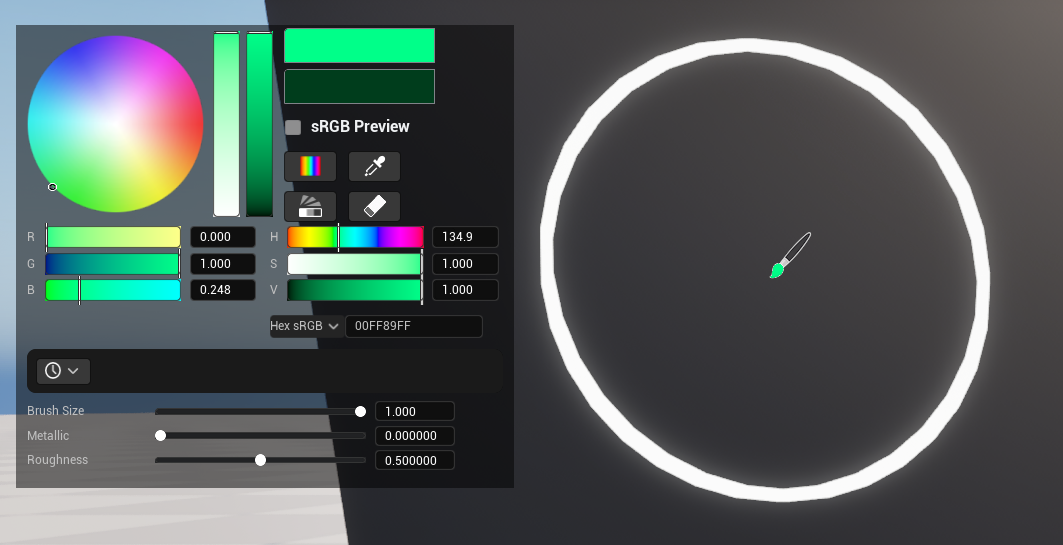
Brush Area Preview
The brush area preview is now generated through the same GPU projection path used by painting.
The controller resolves the hit under the cursor, asks the target component to update its BrushPreviewMaskRenderTarget, and the Mesh Painting material function displays that mask on the mesh. This means the preview is not a separate world-space brush mesh anymore. It is a render-target mask on the painted material, so it follows the paintable UV/surface result much more closely.
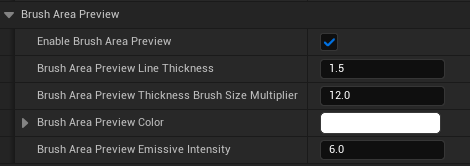
| Setting | Purpose |
|---|---|
Enable Brush Area Preview | Enables or disables the surface ring preview. |
Brush Area Preview Line Thickness | Base thickness of the preview ring. |
Brush Area Preview Thickness Brush Size Multiplier | Adds extra line thickness as brush size increases. |
Brush Area Preview Color | Tint multiplied with the current brush color. White keeps the ring in the active paint color. |
Brush Area Preview Emissive Intensity | Brightness multiplier for the preview mask. This makes the ring readable without using the old brush mesh preview. |
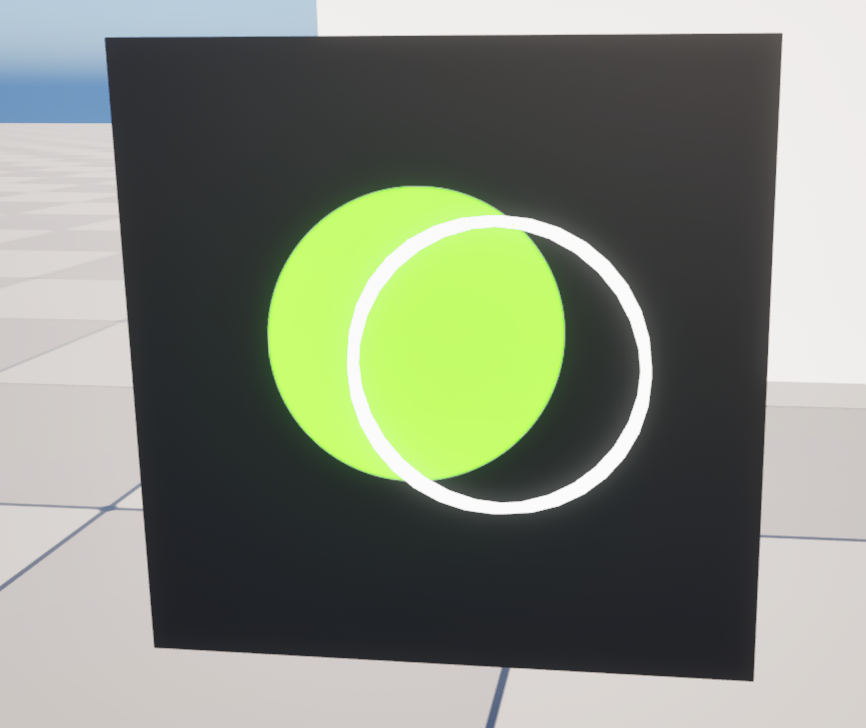
The material must connect the Brush Emissive output from the Mesh Painting material function to Emissive Color. If that output is not connected, painting can still work, but the brush area preview will not be visible on the mesh.
The preview follows the same paint target filtering and trace channel as painting. It is hidden when the cursor is over the color picker UI or when eyedropper mode is active. Short transient trace misses are held briefly to avoid visible flicker.
Advanced Blueprint-only tuning:
| Setting | Purpose |
|---|---|
Brush Area Preview Opacity | Alpha multiplier for the preview mask. |
Brush Area Preview Brush Size Scale | Multiplies preview radius without changing the actual paint brush size. Keep this at 1.0 unless you intentionally want preview-only scaling. |
Camera and Movement
Camera settings only affect the owner while paint mode is active. When paint mode exits, zoom and pan changes are restored smoothly.
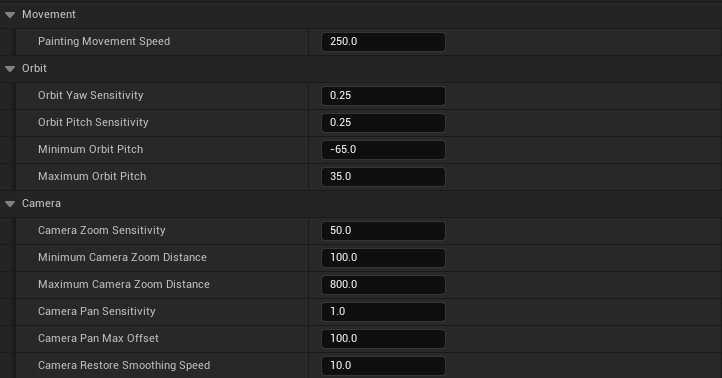
| Setting | Purpose |
|---|---|
Painting Movement Speed | Movement speed used in Third Person Controller mode. |
Orbit Yaw Sensitivity | Horizontal orbit sensitivity. |
Orbit Pitch Sensitivity | Vertical orbit sensitivity. |
Minimum Orbit Pitch | Lower pitch clamp. |
Maximum Orbit Pitch | Upper pitch clamp. |
Camera Zoom Sensitivity | Spring Arm zoom speed in Third Person Controller, or camera zoom speed in Drone Controller. |
Minimum Camera Zoom Distance | Closest allowed zoom distance for modes that support zoom. |
Maximum Camera Zoom Distance | Farthest configured zoom distance. The controller does not zoom farther than the pre-paint default position. |
Camera Pan Sensitivity | Pan speed in Third Person Controller and Drone Controller. |
Camera Pan Max Offset | Maximum pan offset from the saved default position. 0 removes this clamp. |
Camera Restore Smoothing Speed | Speed used when restoring camera pan and zoom after Painting Mode exits. |
Orbit and pan stop active painting before moving the camera. Brush size adjustment also stops painting so input states do not overlap.
Events
The component exposes Blueprint events for paint mode and input state changes.
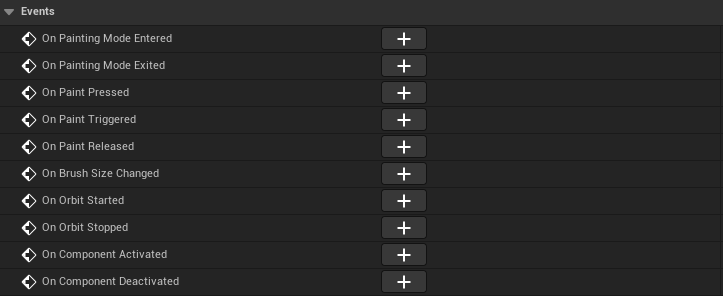
| Event | When It Fires | Typical Use |
|---|---|---|
OnPaintingModeEntered | After paint mode successfully starts. | Open custom UI, update HUD state, or enable paint-only gameplay logic. |
OnPaintingModeExited | After paint mode exits and previous input/camera state is restored. | Close custom UI or return the HUD to normal gameplay state. |
OnPaintPressed | When the paint input starts a new stroke. | Start stroke feedback. |
OnPaintTriggered | While the paint input continues. This can fire many times during one stroke. | Lightweight per-stroke feedback only. Avoid heavy Blueprint work here. |
OnPaintReleased | When the current stroke ends. | End stroke feedback or commit UI state. |
OnBrushSizeChanged | After SetBrushSize changes the clamped brush size. | Update brush size sliders, text, or preview UI. |
OnOrbitStarted | When camera orbit starts. | Hide conflicting UI or show camera-control feedback. |
OnOrbitStopped | When camera orbit stops. | Restore UI hidden during orbit. |
OnComponentActivated | Standard Unreal component event. | Normal component activation logic only. |
OnComponentDeactivated | Standard Unreal component event. | Normal component deactivation logic only. |
Useful Blueprint Functions
| Function | Use |
|---|---|
EnterPaintingMode | Starts paint mode, adds the painting mapping context, creates the widget, and shows the cursor. |
ExitPaintingMode | Leaves paint mode, removes the mapping context/widget, stops input states, and restores camera/input state. |
SetBrushSize | Changes brush size with min/max clamping and broadcasts OnBrushSizeChanged. |
SetBrushAreaPreviewEnabled | Enables or disables the surface preview ring. |
SetPaintTargetComponent | Restricts painting to one target component. |
SetPaintTargetComponents | Restricts painting to a list of target components. |
AddPaintTargetComponent | Adds one target component to the allow list. |
ClearPaintTargetComponents | Clears the allow list so hit-based target discovery can be used again. |
GetBrushMaterialSettings | Returns the current color, size, metallic, roughness, and erase state as brush settings. |
ApplyBrushMaterialSettings | Applies external brush settings to the controller. |
SamplePaintedSurfaceColor | Samples color through the resolved paint target. |
ApplyPaint | Applies paint under the current cursor position. Normally called by input. |
UndoPaint | Undoes the most recent completed paint action. |
RedoPaint | Redoes the most recently undone paint action. |
CanUndoPaint | Returns whether an Undo action is available. |
CanRedoPaint | Returns whether a Redo action is available. |
These functions can also be called directly from Blueprint or C++ when the painting flow is controlled manually, including when Control Mode is set to None.
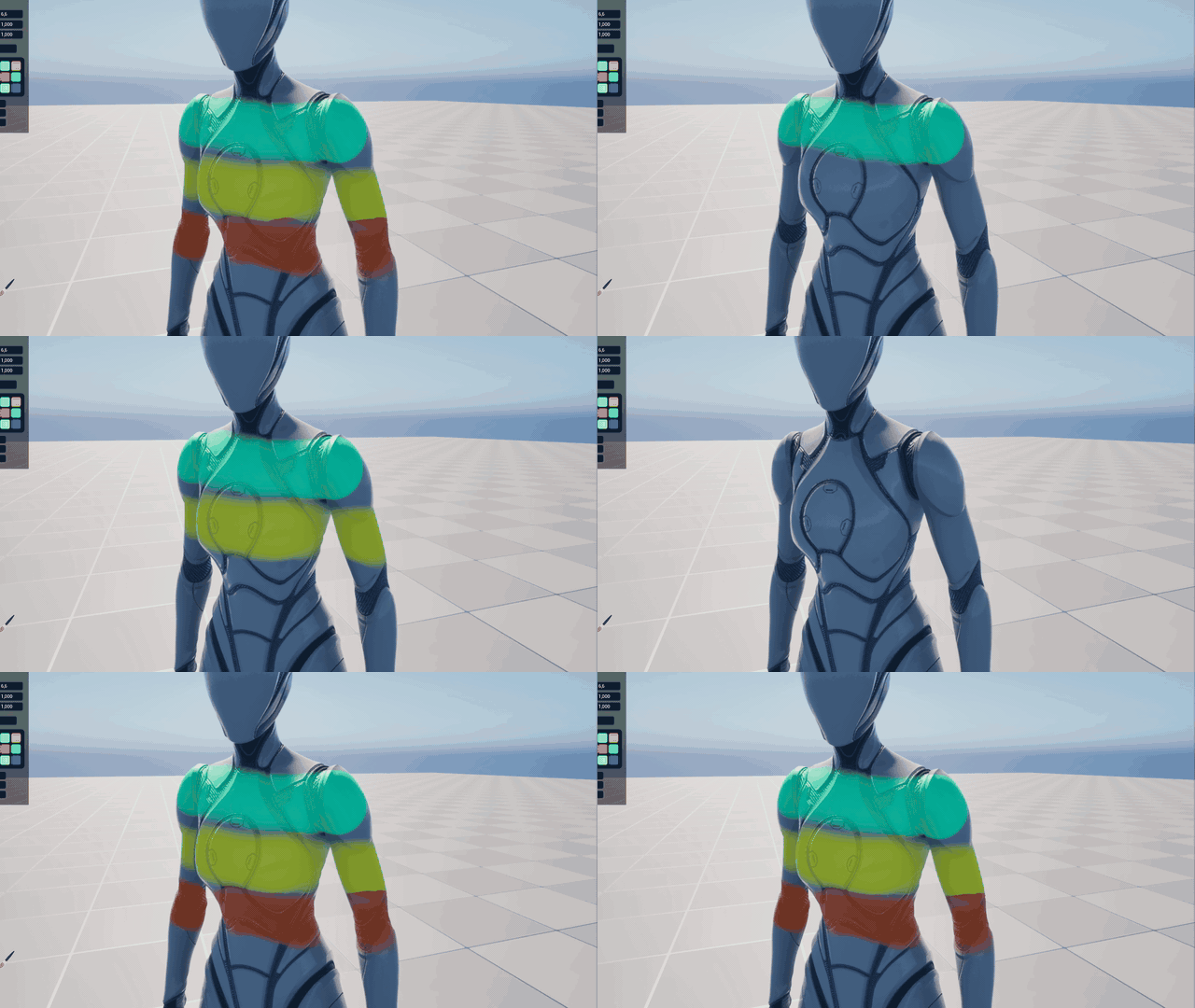
Undo and Redo
Undo and Redo operate on completed paint actions. The runtime example below shows a paint action being undone and then restored with Redo.
Multiplayer Behavior
The controller is the multiplayer submission point for player input.
When the target has Replicate Runtime Paint enabled, the controller applies local prediction first, then submits a compact paint command batch to the server.
For skeletal meshes, the command also carries screen projection data so other clients can reproduce the same GPU projected brush without using the old CPU skeletal UV fallback path. The target component validates and stores the authoritative paint history. Late join and replay details are covered in Multiplayer.
Undo and Redo requests use the replicated authoritative paint history, so their results are synchronized to other clients. Late-joining clients rebuild the current painted state from the replicated command history.
Common Mistakes
Control Modeis set toNone, so no paint input is added.Third Person Controlleris used without anACharacter,CharacterMovementComponent, orSpringArmComponent.First Person ControllerorDrone Controlleris used without aCameraComponent, orCameraNamedoes not match a camera component on the owner.Paint Target Componentscontains the wrong target, so valid meshes under the cursor are ignored.- The target mesh does not block the selected
Paint Trace Channel. Load Default Input Assetsis disabled but custom input actions or mapping contexts were not assigned.- Undo or Redo actions are not assigned when default input assets are disabled, or their chorded mappings are missing.
- Heavy Blueprint logic is bound to
OnPaintTriggered, causing hitches during continuous strokes. - The cursor is over the color picker UI, so painting and preview are intentionally blocked.
- The material does not connect
Brush EmissivetoEmissive Color, so the GPU brush area preview mask is generated but not visible.