
Quick Start
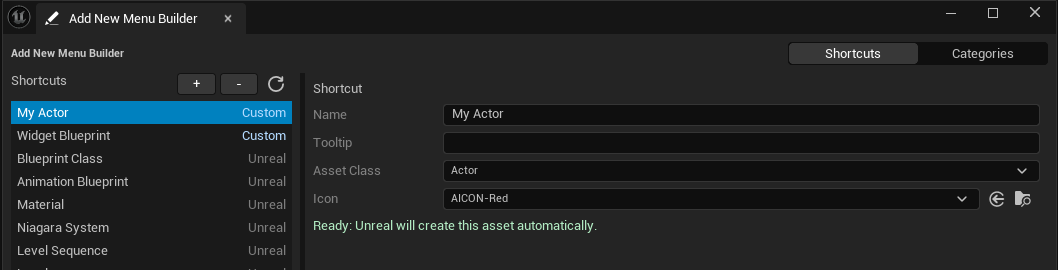
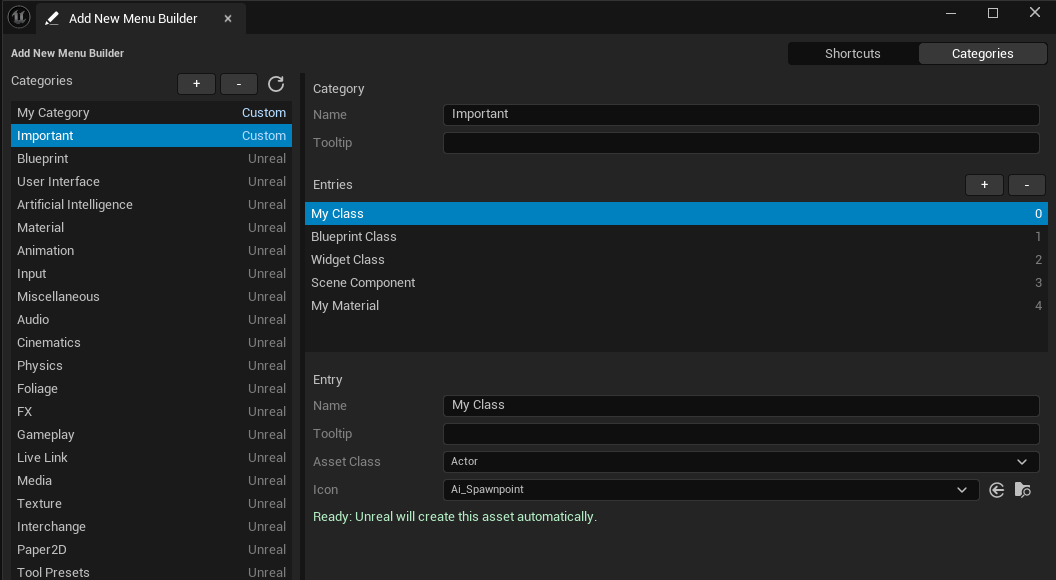
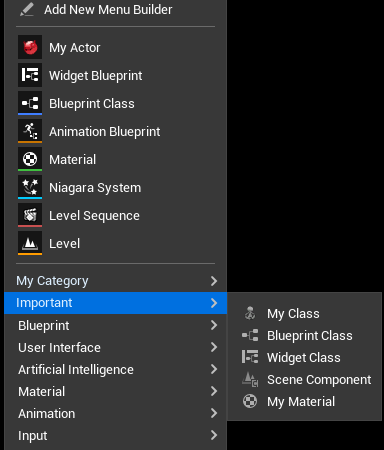
Create a shortcut that appears directly in Unreal's Add New menu, then a custom category with its own asset entries. The screenshots below use My Actor as the shortcut and Important as the category.
Quick Start Tutorial
1. Open the builder
In the Content Browser, open a folder where you can create assets. Click Add New → Add New Menu Builder. The editor tab has Shortcuts and Categories at the top right.
2. Add a shortcut
- Select Shortcuts and click + beside the list. A new Custom row appears at the top.
- Give it a Name, such as
My Actor, then choose an Asset Class. The example usesActor. - Check the status below the fields. Green Ready text means Unreal can create an asset from that class. Tooltip and Icon are optional.
The shortcut will appear directly in Add New, without opening a category first.
3. Add a category and entries
- Select Categories and click + beside the category list. Name the new Custom category, for example
Important. - Keep that category selected and click + beside Entries. Give the entry a Name, such as
My Class, and choose its Asset Class. - Repeat the entry step for more assets. Each entry becomes an action inside the category's submenu.
4. Choose the asset type and optional icon
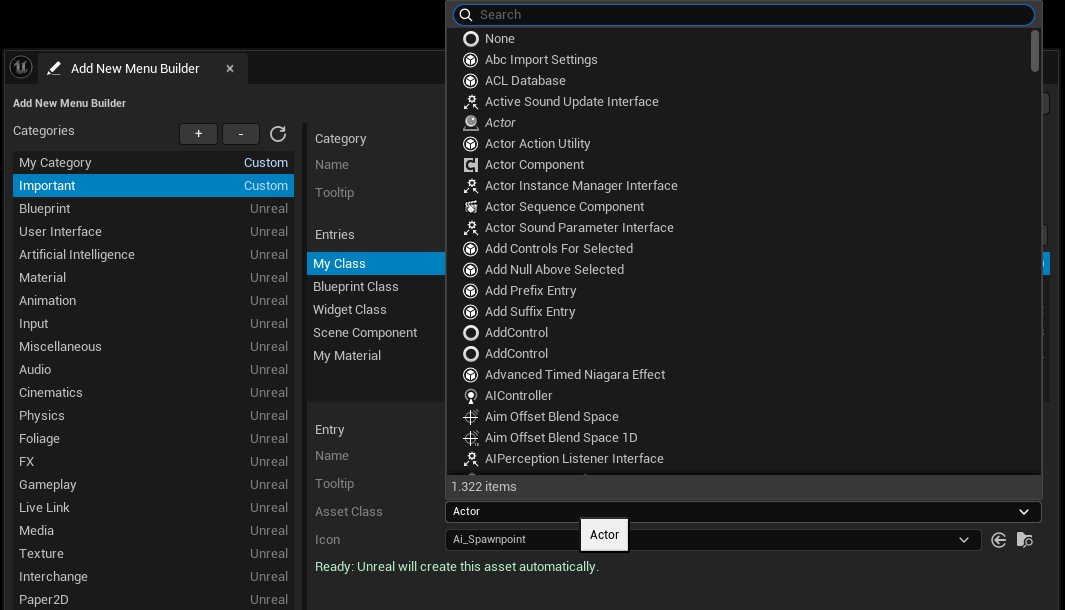
Both shortcuts and category entries have an Asset Class picker. Open it, search for the class you want, and confirm that the status below the fields says Ready. Not every class shown in the picker can be created as a Content Browser asset; if the status is not ready, choose another class.
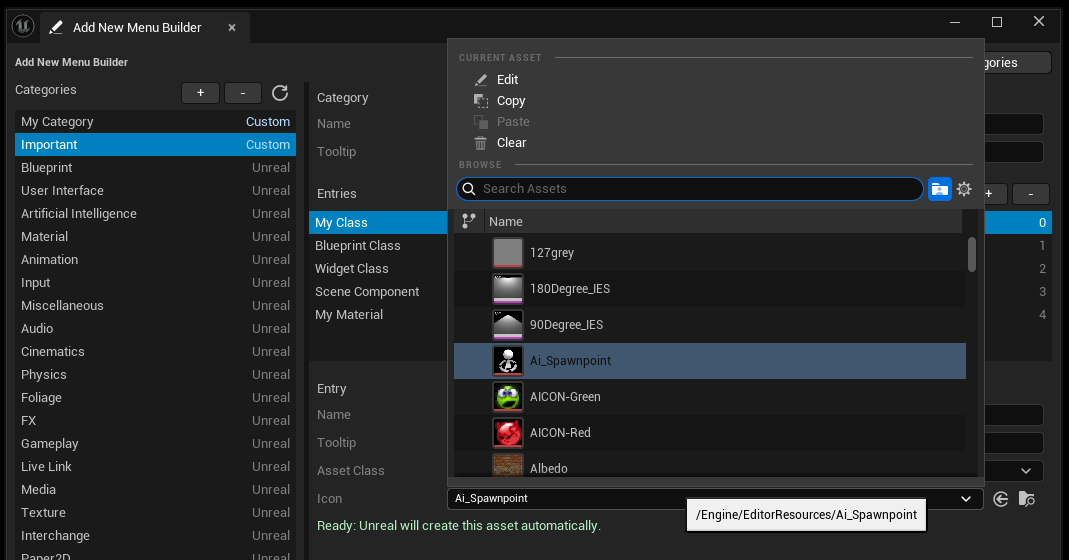
To give an item its own image, choose an existing Texture2D in the optional Icon picker. Leave it empty to use the available default icon.
5. Check the result in Add New
Return to the Content Browser and reopen Add New. The shortcut appears in the main menu; your category opens a submenu with the entries you added. Click one of your items to create an asset in the selected folder.
Changes are saved as you edit; there is no separate Save button. Drag rows in Shortcuts, Categories, or a custom category's Entries list to change their order. Unreal category contents cannot be edited here. See Rules for the full list.